
In short: IFS Cloud lets you move migration jobs between environments through migration groups: tag your jobs with a common Group ID, export the group to a file, then load that file with the standard FNDMIG_IMPORT job in the target environment. Two things the documentation does not put up front: the import replaces any existing job with the same name, and some teams still hit an unresolved error at import time. Here is the full procedure, the risks, and the checks to run before you touch PROD.
You spent a day building a migration job in DEV. File configuration, column mapping, rules, method list: it finally runs clean. Now you need the same job in TEST, then in PROD. Rebuilding it by hand in each environment is how mappings quietly drift apart, and how a job that worked in DEV starts failing in production for reasons nobody can reproduce.
The question comes up regularly on the IFS community. One user put it plainly in 2024: "I created a Data migration job in our DEV environment and I want to copy it into our PROD environment, what is the best way to do this?" The accepted answer pointed at the technical documentation, without walking through the steps. This article walks through them.
The native method, step by step
IFS Cloud does not move a job on its own. It moves a group of jobs. The Group ID is what makes the whole mechanism work, and it is also what makes it risky if you are careless about what you put in the group.
The procedure below comes from a community answer validated in February 2025, on a thread where a team needed to move a large number of jobs into a new IFS Cloud environment.
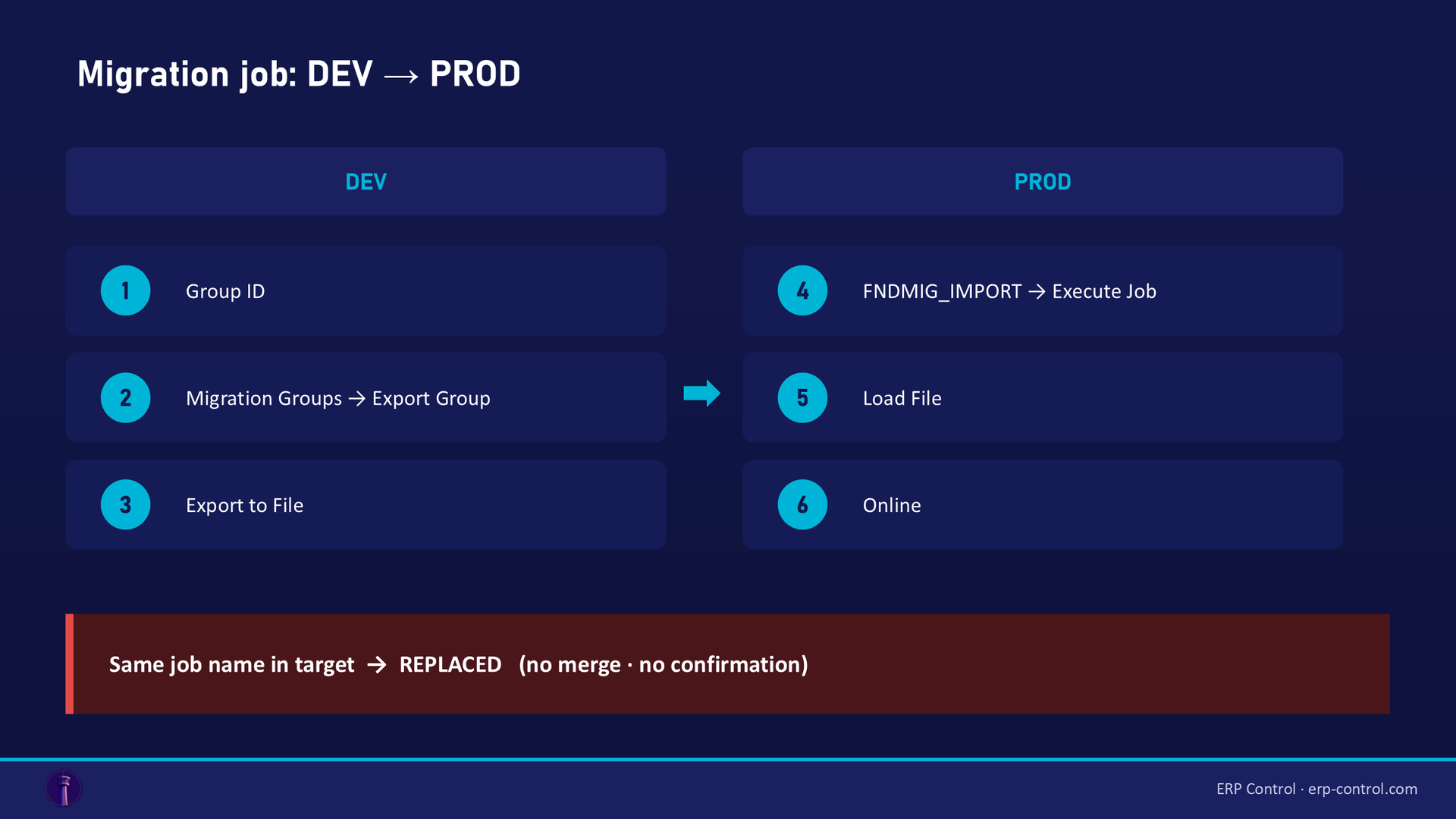
1. Tag the jobs with a common Group ID.
In the migration job screen, set the same Group ID on every job you want to move. A job without a Group ID stays where it is.
2. Export the group.
Open the Migration Groups screen, select your Group ID, then run the Export Group command and confirm the pop-up.
3. Write the export to a file.
Run the Export to File command, enter a file name, confirm. The file lands in your download folder. Save it somewhere you will find it again: this file is the only thing that travels between environments.
4. In the target environment, open FNDMIG_IMPORT.
Search for the migration job named FNDMIG_IMPORT in the migration job screen, then run Execute Job.
5. Load the file.
Run the Load File command, upload the file you exported at step 3, confirm.
6. Run it.
Once the file is loaded, run the Online command. On success, IFS displays an information message summarising what was imported.
That is the whole flow. Nothing to install, nothing to script: it is standard IFS functionality, available in every environment.
What the import overwrites, and why it matters
This is the part worth reading twice.
When the imported file contains a job whose name already exists in the target environment, the system replaces the existing job. There is no merge, no conflict prompt, no "keep both" option. The version that arrives wins.
The author of the validated answer was explicit about the consequence: only assign a Group ID to jobs that have been properly tested, and let the system replace what is already there. That advice is sound, but it puts the entire safety of the operation on your discipline in managing Group IDs.
Consider the realistic scenario. A job exists in PROD, where someone adjusted a rule six months ago to handle a local edge case. The DEV version never got that adjustment. You promote your group, the PROD job is replaced by the DEV version, and the edge case silently comes back the next time the job runs. Nothing in the procedure warns you: the import message tells you the operation succeeded, not what it changed.
So before any promotion into a production environment, the question to answer is not "does my job work in DEV", it is "has the target version diverged from mine".
Under the hood: how the group is selected
If you need to understand or adjust what gets exported, the selection happens in a rule on the FNDMIG_EXPORT job. A community member shared the default where clause used on the INTFACE_NAME rule:
`
INTFACE_NAME IN (SELECT intface_name FROM INTFACE_HEADER WHERE GROUP_ID = '<group_id>')
`
In plain terms: export every job definition whose name belongs to the group you selected. This is the default behaviour of FNDMIG_EXPORT, and it is useful to know when you want to check what a group actually contains before exporting it.
When it fails, and what the community knows so far
Honesty matters more than a clean tutorial here, so let us be clear about the state of the art.
In May 2026, a user followed exactly the steps above and hit an error at import time, with FNDMIG_IMPORT, in a different environment. The thread is still open at the time of writing. One experienced member suggested a lead worth testing: the length of migration job names. Some underlying database columns are short, and a job name that is too long can break the import. The suggested test is simple: rename the job definitions with shorter names and try again.
Two other checks are worth running before you conclude the mechanism is broken:
- confirm the export file actually contains something, by exporting a group with a single, small, known job first;
- confirm the Group ID is really set on the jobs you expect, since a job without a Group ID is silently left out of the export.
If the import still fails, you are in known territory: this is a documented, unresolved case, not a mistake on your side.
What this method does not give you
The mechanism works, and for a one-off move it is perfectly reasonable. Its limits show up when promoting configuration becomes a routine rather than an event.
- No history. Nothing records who promoted which job, from which environment, when. The information message disappears with the session.
- No preview. You cannot see what the import is about to replace before it replaces it.
- No rollback. If the imported version is wrong, the previous one is gone; you restore it from another environment, assuming one still holds it.
- Group granularity. You move a group, not a job, so your Group IDs have to be curated by hand for every promotion.
- A file in a download folder. The artefact that travels between your environments is a file on someone's workstation.
And promotions are rarely a one-off: every time a test environment is refreshed from production, the jobs you had promoted there are overwritten, and the whole exercise starts again. See what a clone actually replaces.
This is exactly the territory ERP Control was built for: promoting configuration between environments (CFG, TRN, UAT, PROD) with a comparison before the write, an object-level selection, and a full audit trail of what was promoted, by whom and when. Not to replace the native migration jobs, which do their job, but to make the promotion itself controlled and repeatable.
See how ERP Control handles configuration promotion across your IFS environments: explore the configuration promotion module.
Checklist before promoting to production
Run through these six points before you load anything into PROD:
- The job is tested in the source environment, on data that resembles the target.
- The Group ID contains only the jobs you intend to promote, checked one by one.
- You have listed the jobs with the same name already present in the target environment.
- For each of them, you have confirmed the target version has not diverged from yours.
- The export file is saved outside the download folder, with the date and source environment in its name.
- You know how you would restore the previous version if the import proves wrong.
See ERP Control on your own case
Promotion between environments is the daily job of the tool. In a POC, we take one of your real promotions, replay it in ERP Control, and you see what changes on your own configuration, with the comparison and the log.
What happens next: a 30-minute call to scope the need, a demo on your data, then you decide. No commitment.
FAQ
Can I move all my migration jobs at once?
Yes, that is exactly what the Group ID is for. Assign the same Group ID to every job you want to move, then export the group in one operation.
What happens if a job with the same name already exists in the target environment?
It is replaced by the imported version. IFS shows an information message when the import completes, but does not ask you to confirm the replacement. Only group jobs you have properly tested.
Where does the exported file go?
Into your browser download folder, once you run the Export to File command. Save it elsewhere with a meaningful name: it is the only artefact that travels between environments.
The import fails with an error, what should I check?
First, that the Group ID is really set on the jobs concerned. Then try with a single small job to isolate the problem. If it still fails, test shorter job names: an unresolved community case from 2026 points at the length of job names, limited by short database columns.
Sources
Real cases from the IFS community (discussions with a validated or expert answer):
- IFS Community discussion: moving a set of migration jobs to a new environment (2025)
- IFS Community discussion: error when importing a migration job group (2026)
- IFS Community discussion: copying a migration job from one instance to another (2024)
- IFS technical documentation: export and import of migration jobs
Part of our pillar guide: IFS Cloud Data Migration, the complete 2026 guide.