
You set up a data migration job in IFS Cloud. Last week it loaded data fine. This week, every job throws the same wall:
SE_UNAUTHORIZED — Insufficient privileges.
You haven't changed anything. So why is IFS suddenly blocking your own migration job? Here's what's really happening, and how to clear it in a few minutes.
What this error actually means
SE_UNAUTHORIZED is a security error, not a data error. IFS is telling you that the user account running the migration job is not allowed to access something the job needs — typically when you click Load or Validate in the Excel migration add-in (Aurena / Office 365).
The misleading part: it often appears on a job you created yourself, on a brand-new environment, even though you're an administrator. That's the clue to the real cause.
Why it happens: the auto-created projection
Here's the piece most people miss.
When you create a migration job, IFS automatically creates a new projection behind it (the technical interface the job uses to read and write data). That projection is brand new — and nobody has been granted access to it yet, not even the person who just created the job.
So even if you built the job, you still need that auto-created projection to be granted to your user before you can run it. IFS doesn't grant it automatically. That mismatch is exactly what raises SE_UNAUTHORIZED — insufficient privileges.
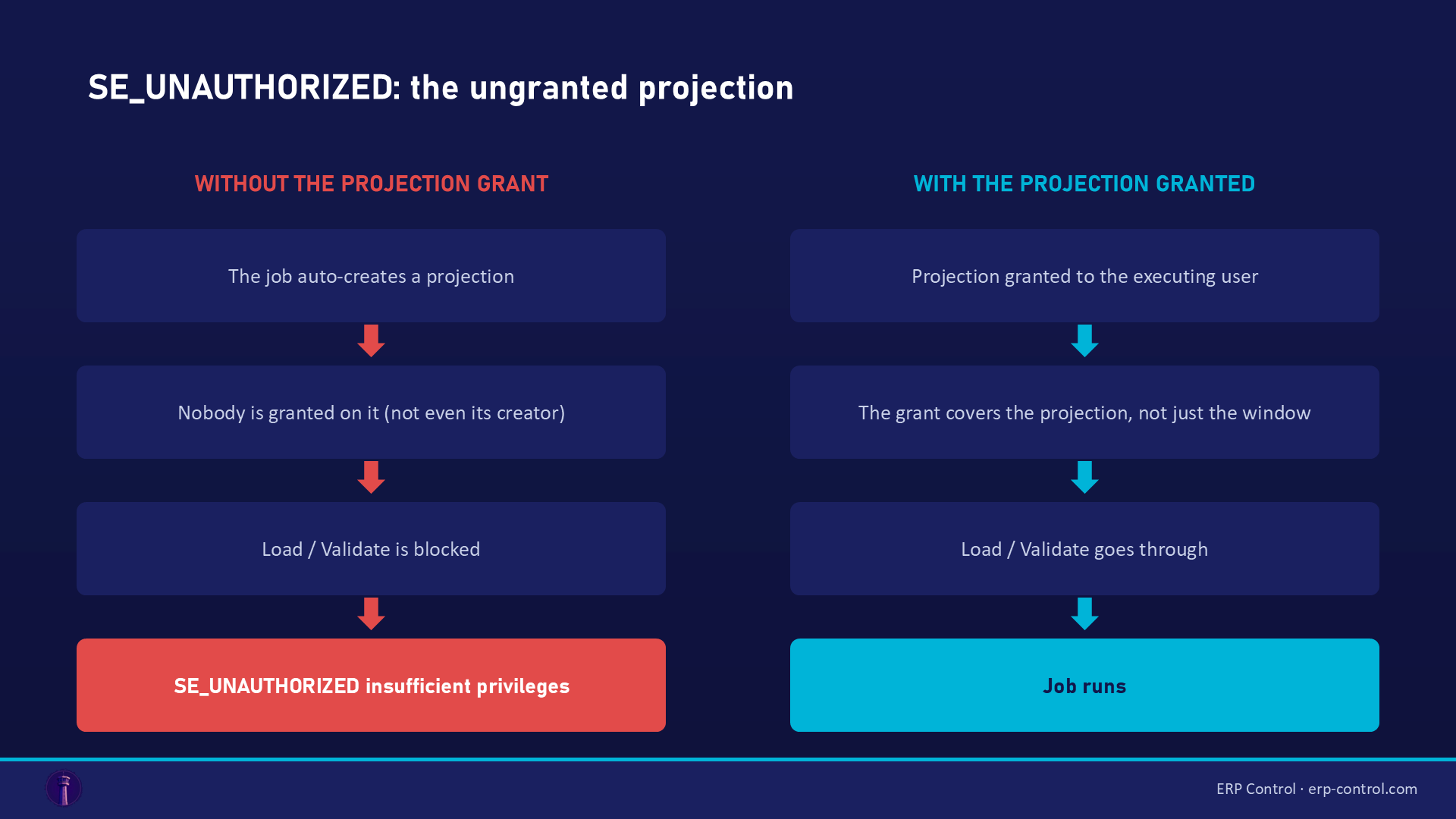
This is confirmed by a real IFS Community case (IFS Cloud 22R1): after creating a migration job, an administrator had to grant the job's projection to the executing user — even though it was the same person who created the job.
How to fix it
- Identify the migration job's projection. Each migration job has an associated projection created at the moment the job was defined.
- Grant that projection to the executing user, through your IFS security setup (Permission Sets / Security Management). The user who clicks Load / Validate / Execute must have access to the projection — not just to the migration window.
- Re-run Load / Validate. The
SE_UNAUTHORIZEDerror disappears once the grant is in place.
Tip: if the projection still doesn't appear or behaves oddly, try Re-generate Excel Migration for the job — this refreshes the generated interface.
How to avoid it next time
- Treat "grant the projection to the executing user" as a standard step every time a new migration job is created — not as a bug to troubleshoot later.
- Keep a short checklist: create job → grant its projection → load → validate → execute.
- On a fresh environment (new implementation), expect this on the first job — once the pattern is in place, it stops surprising you.
A related gotcha to watch for
In the same real-world case, once the permission was fixed, the next error to appear was an ORA-20110 … does not match format string on date fields (e.g. Creation Date) — a known issue on early 22R1. If you hit that right after fixing SE_UNAUTHORIZED, it's a separate problem (date formatting / a version bug), not a permission one.
Doing migrations without fighting permissions
SE_UNAUTHORIZED is a symptom of how IFS handles projection-level security on migration jobs — powerful, but easy to trip over. ERP Control lets your team run IFS Cloud data migrations without writing PL/SQL or hunting through security screens: the tool manages the migration flow over the IFS OData API, so the right access is handled consistently across your CFG, UAT, TRN and PROD environments.
See how ERP Control simplifies IFS Cloud migrations — explore the migration module.
Part of our pillar guide: IFS Cloud Data Migration — the complete 2026 guide.
Related IFS migration errors
Permissions are only one of the walls a migration job hits. The other common blockers, all covered in our IFS Cloud data migration pillar guide:
- ORA-20110 — a violated business rule: the code tells you which one, once you know how to read it.
- ORA-20111 / FND_RECORD_NOT_EXIST — a missing contextual prerequisite (parents before children).
- ORA-20112 FND_RECORD_EXIST — the job tries to INSERT a row that already exists.
- ORA-20122 "may not be modified" — a field locked at insertion, sent again by the update.
FAQ
Is SE_UNAUTHORIZED a data problem?
No. It's a security/permissions problem. IFS is blocking access, not rejecting your data.
Why does it happen on a job I created myself?
Because creating a job auto-creates a new projection, and that projection isn't granted to anyone yet — including you. An administrator must grant it to the executing user.
It worked last week and broke this week — why?
Typically a security/permission change in the environment, or the projection access was never granted and a cached session masked it. The fix is the same: grant the job's projection to the user running it.
Sources
Real case from the IFS Community (IFS Cloud 22R1, migration via the Office 365 / Aurena Excel add-in; resolved thread, the author documents the fix):
- IFS Community discussion — "insufficient privileges" error when loading a migration job — solution stated by the author: "after creating a migration job a new projection is created for it; admin must grant the projection to the user executing the job, even if it's the same person that created the job."
- A write-up on resolving this error (IFS Data Tools)